Unit renovation progress by property, without a tracking spreadsheet
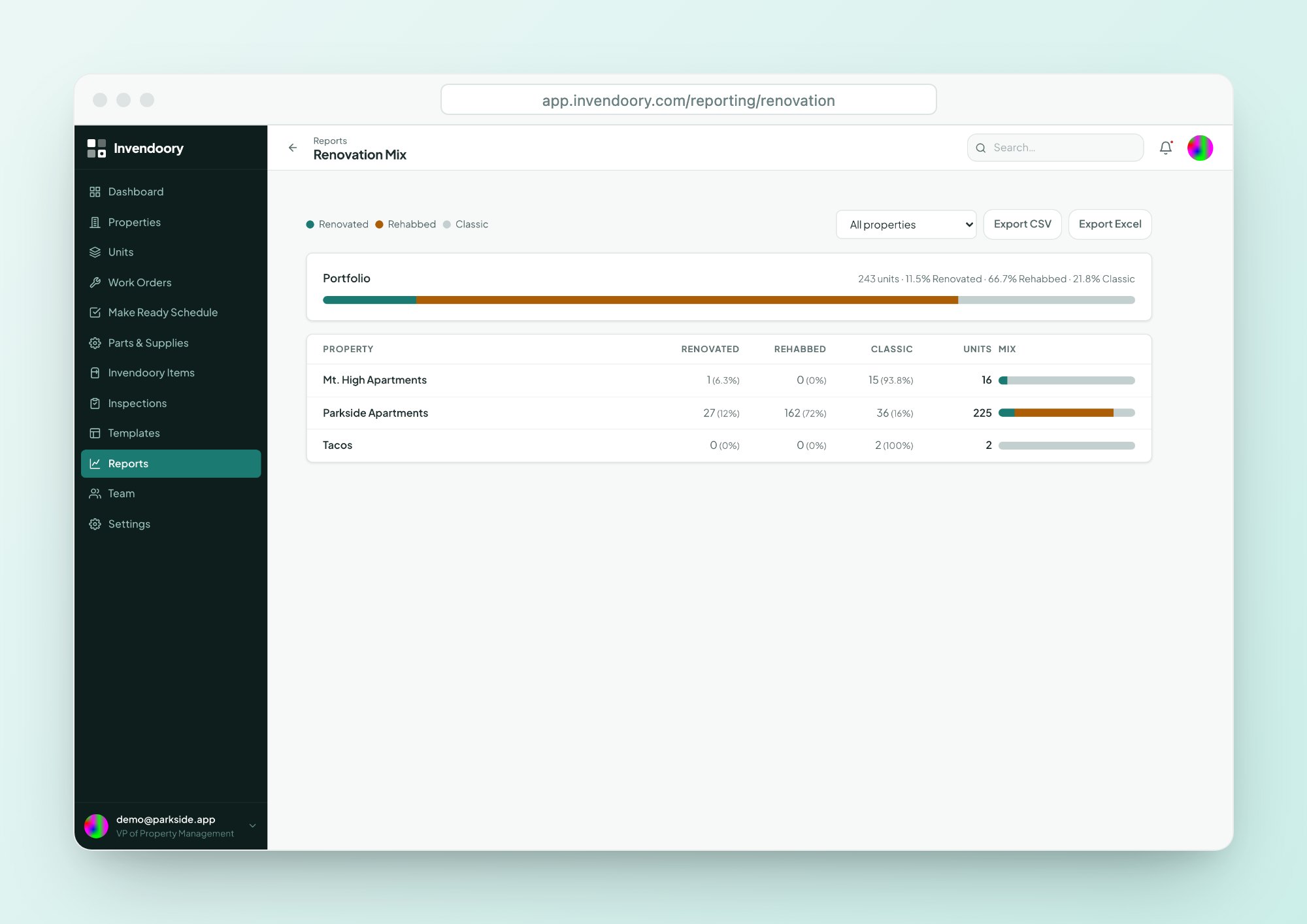
Every unit is automatically Classic, Rehabbed or Renovated, based on the renovation status of the items inside it. The Renovation Mix report counts them by property and across your whole portfolio.
Nobody agrees how many units are actually done
A unit renovation program starts clean. There is a list of units, a scope and a plan. Six months later the list lives in three places, the site team says 40 units are finished, the regional says 32, and the only way to be sure is to walk the buildings.
The cause is simple. The status of each unit is typed into a tracker by hand, separate from the work itself. When a tech replaces a range or a vendor installs new flooring, nobody updates the tracker.
In Invendoory the status is not typed in. It is worked out from the items that are really installed.
Three labels for every unit renovation, worked out from the items
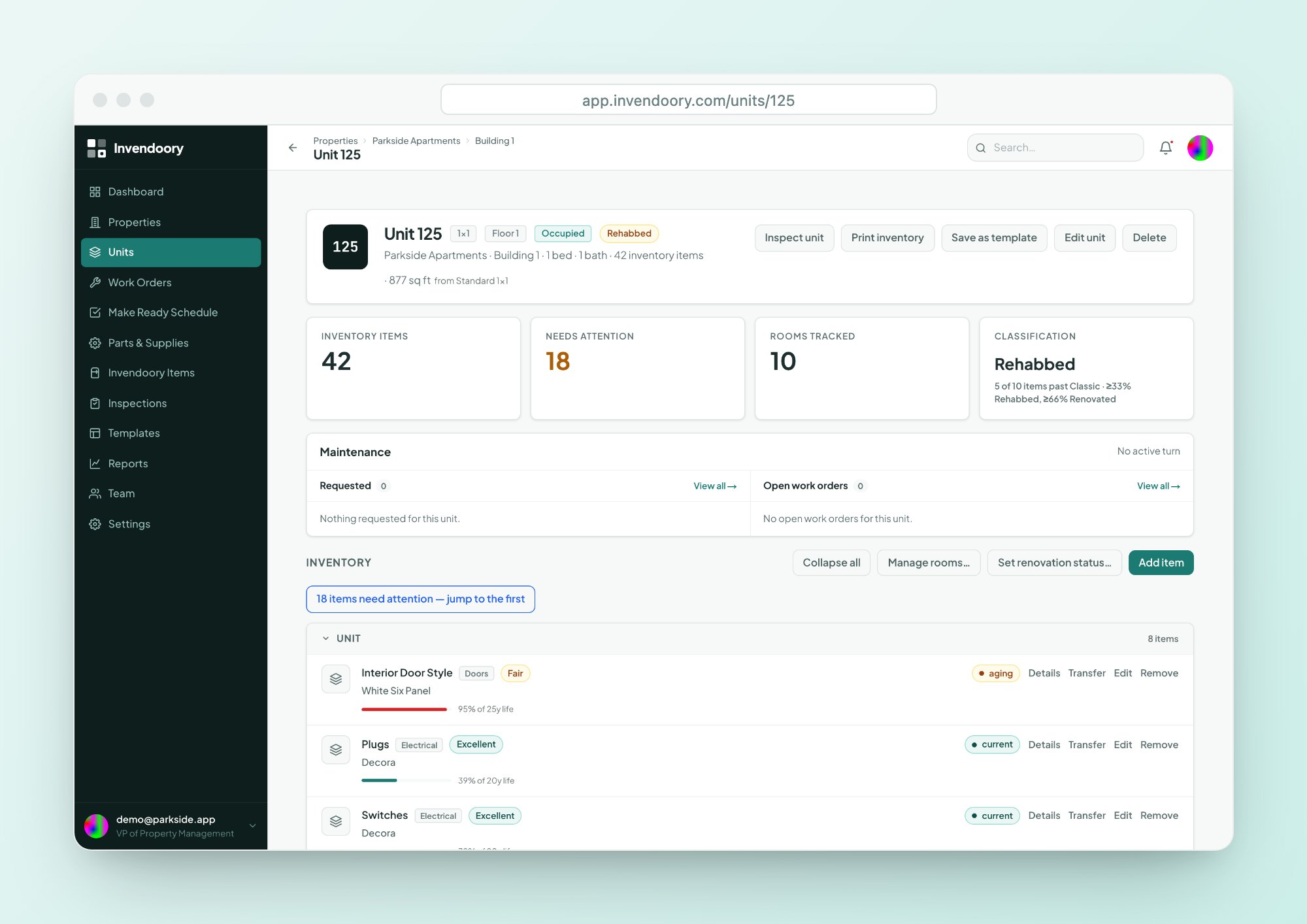
Each item in a unit carries a renovation status: Classic, Rehabbed or Renovated. Invendoory reads those statuses and assigns the unit its own classification, which the app explains right in the unit view.
There is no separate field to maintain. When an item’s status changes because a turn was verified or a replacement was completed, the unit’s classification follows.
- Every item is marked Classic, Rehabbed or Renovated
- Every unit gets the same three labels, automatically
- The rule is explained in the app, beside the label
- Classification updates when item statuses change
Renovated units counted by property and across the portfolio
The report answers the question a regional asks first about unit renovation: how many of each, and where?
Counts by property
Classic, Rehabbed and Renovated unit counts for each property, side by side, so you can see which communities are furthest along.
A portfolio total
The same three counts across every property, so the number you give your VP matches the numbers behind it.
- Exports to CSV and Excel
- Same numbers as the unit records
From the count to the exact units
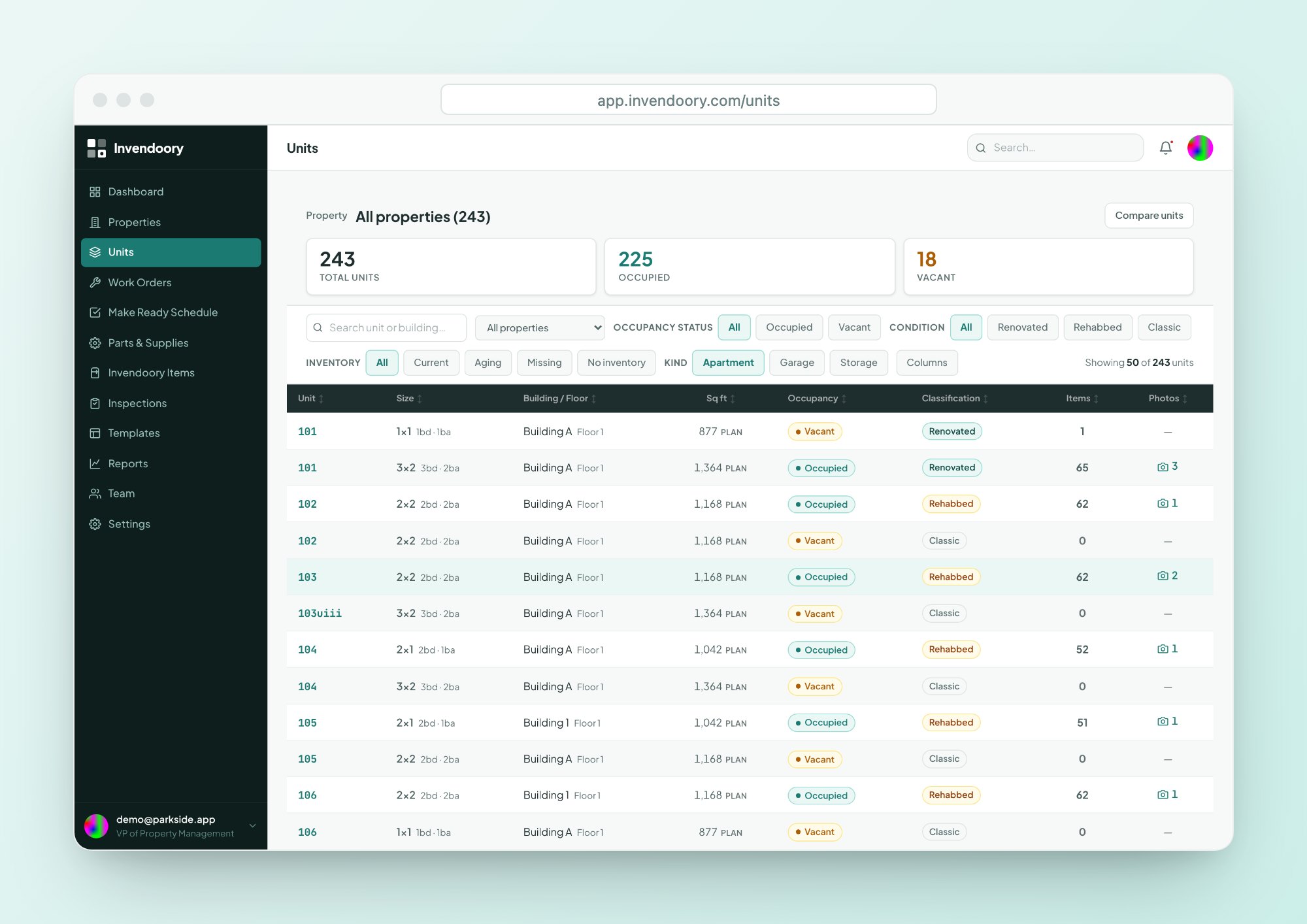
A number is only useful if you can find the units behind it. The Units table filters by classification, so you can list every Classic unit at a property, plan the next batch and hand the list to your supervisor.
The unit grid for each building is also colored by inventory health, and you can compare 2 to 4 units side by side when you want to show a prospect or a regional the difference between a Classic and a Renovated floor plan.
- Filter the Units table by classification
- Add per-category columns to see the installed item and its years left
- Compare 2 to 4 units side by side, with differences highlighted
How a value add multifamily program stays on the record
Value add work only pays off if you know what is done, and unit renovation status is how you know. This is how the count stays true.
Do the work
Techs mark each item task Replaced or Serviced, with the part that went in.
Verify the turn
A property manager verifies it, and replaced items become new installs with today’s date.
Read the mix
The unit’s classification updates, and the Renovation Mix counts move with it.
Multifamily renovation and unit renovation tracking for each role
Property managers
See how many units at your community are Classic, Rehabbed or Renovated, and which are next.
Regional managers and VPs
Compare properties and report one portfolio number you can defend.
Maintenance supervisors
Know which vacant units are queued for work and what each turn needs.
Unit renovation counts, not returns
Renovation Mix tells you where each unit renovation stands. It does not calculate rent lift, cost per renovated unit or return on investment, and it does not hold a renovation budget. Pair it with Budget Projection to compare spend against plan.
Accuracy also depends on the item records. If renovation status was never set for a unit’s items, the unit’s classification will reflect that. Verified turn sheets write replaced items back to the unit, so the record closes its own gaps as work gets done.
Unit renovation questions
How does Invendoory decide a unit is Classic, Rehabbed or Renovated?
It looks at the renovation status of the items in the unit and works out the unit’s classification automatically. The rule is explained in the app next to the classification, so site teams and regionals can see why a unit landed where it did without asking anyone.
Do we have to update unit status by hand?
No. There is no separate status field to keep up. When an item’s renovation status changes, for example after a verified turn or a completed replacement, the unit’s classification follows and the report counts update, so unit renovation progress is never retyped.
Can I see renovated units for one property only?
Yes. The report counts units by property and across the portfolio, and the Units table lets you pick a property and filter by classification. That gives you the exact list of units behind each number, ready to hand to a supervisor or a vendor.
Does it track renovation cost or return?
No. Renovation Mix counts units by classification. For spend against plan, use the Budget Projection report, which compares budget and actual by category. Neither report calculates rent lift or return on investment, so keep that analysis in your own model.
Can I export the counts?
Yes. Every report in Invendoory exports to CSV and Excel. Most teams will want the property counts for their regular portfolio update, with the Units table open for the unit-level detail when someone asks which units are Classic and which are done.
See unit renovation counts on sample data
Open the live demo and look at the units table and the Renovation Mix report. No signup, no customer data.